Song Arrangement
Build an eight-track arrangement from saved Patterns, audio clips, and Instrument takes.
Create a first Song
- 01
Open SONG
Switch to the standalone SONG workspace and open the Songs library.
- 02
Create the document
Choose NEW, enter a name, and choose CREATE SONG. The arrangement autosaves.
- 03
Add a track
Use the add-track control and choose PATTERN / MIDI, AUDIO, or INSTRUMENT.
- 04
Choose material
Select a saved Pattern or clip in the tray/BANK, select the destination track, and place copies on its timeline.
- 05
Play and refine
Use Play/Stop, timeline zoom, and the ruler to inspect the arrangement. Undo/Redo lets you revise edits.
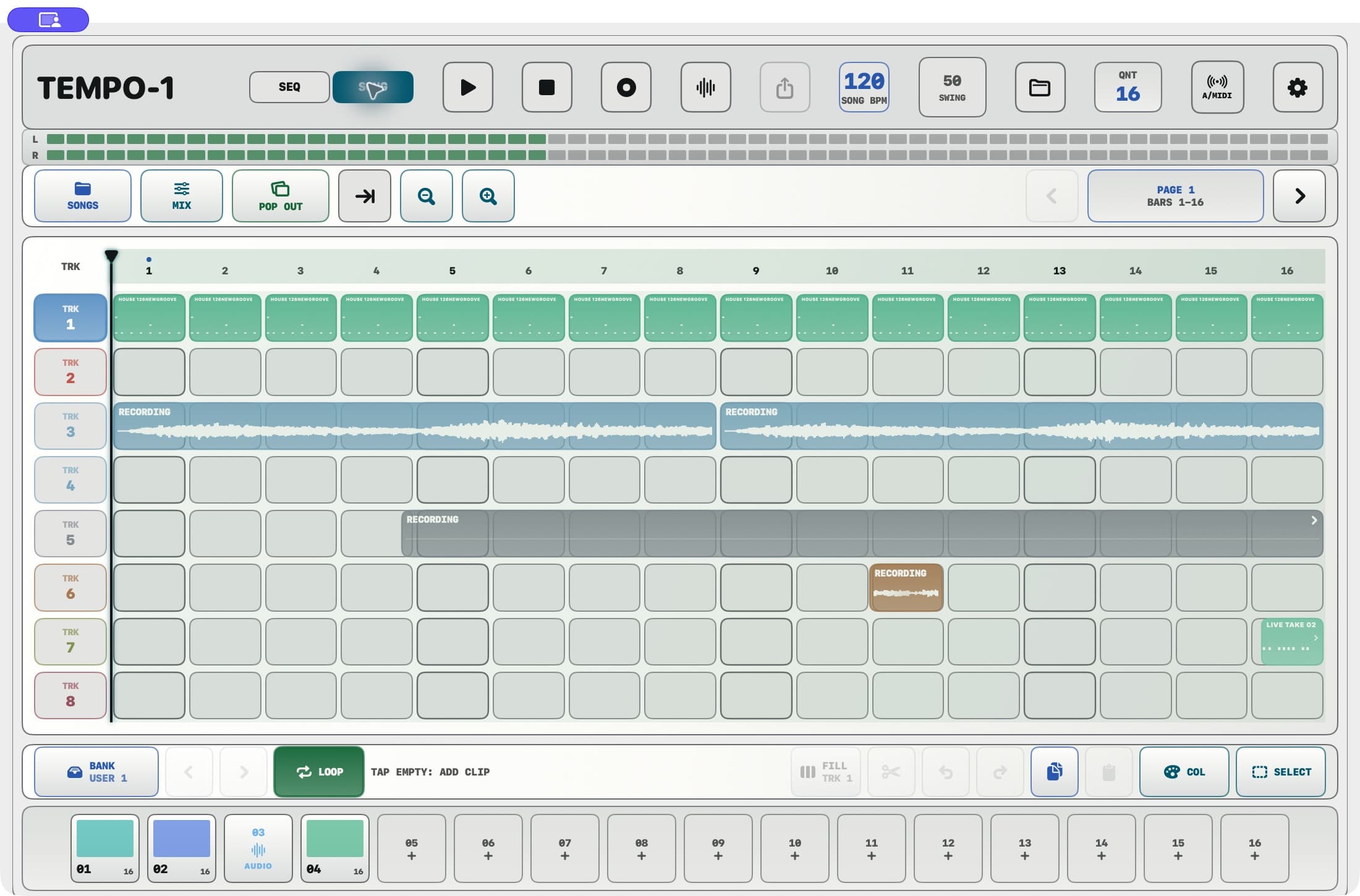
Choose a track type
| Type | Purpose |
|---|---|
| PATTERN / MIDI | Place saved Patterns and record pad or incoming MIDI takes with TEMPO-1 voices. |
| AUDIO | Record microphone/interface input and arrange waveform clips or imported audio. |
| INSTRUMENT | Host an installed AUv3 instrument and record its MIDI performance, audio, or both. |
Select, move, and inspect
- Tap a TRK header once to select its track. Double-tap the header to open that track in the Song Mixer.
- Select timeline items before using their edit tools. Double-tap a Pattern/MIDI take or audio clip to open its editor.
- Use timeline zoom to move between arrangement overview and precise placement. The ruler provides a time range for operations that support a selection.
- For a worked example, open TEMPO-1 Example Arrangement from the Songs library. Its INTRO, VERSE, BREAK, CHORUS, and OUTRO sections combine DRUMS + PERCUSSION with MUSIC + TEXTURE. The example is seeded once; deleting it does not automatically recreate it.
- Use the Song's editing controls for the selected material. Check the current tool before dragging, and open a clip editor for detailed trim or split work.
- Placed Pattern material is a Song copy, so editing the original in BANK does not rewrite the arrangement.
- SEL / SELECT enables marquee selection; hold it to select all Pattern, Audio, and Instrument items. COL enables clip coloring: press a clip and drag to choose its color. A selected group changes together.
- STEP / BAR changes the move/trim resolution. The selected item's OPEN, SAVE, LOOP, and DEL controls provide its editing, reuse, repeat, and removal actions.
- On Mac, POP OUT (the overlapping-window icon) opens the Song in a separate window showing the same document.
Jump, markers, and page follow
- Tap the Song page readout to open JUMP IN SONG. Choose a page or bar, use FIT SONG for the full arrangement, or create/select named MARKERS with ADD AT BAR.
- FOLLOW keeps the visible page with playback. Navigating manually can turn follow off so you can work elsewhere in the Song.
- The Song ending follows the last arranged content. Use the loop region to repeat an earlier range.
- The shared Stop control pauses at the current position on its first press. Press it again while stopped to return to the beginning.
FILL empty gaps
- 01
Select a source
Choose a saved Pattern or clip in the Song tray.
- 02
Select the track
Tap the intended TRK header once. FILL acts on this track.
- 03
Choose the range
Show the bars you want to fill, or make an explicit ruler time selection. At fit zoom the visible range can cover the whole Song.
- 04
Tap FILL
TEMPO-1 tiles whole copies into empty gaps, beginning on bar lines. Existing material is preserved; a gap too short for a whole copy stays empty.
- 05
Revise
One FILL operation is one Undo, including a fill across a long range.
Song keyboard shortcuts
On Mac or with a hardware keyboard, open the Song shortcut guide with Shift+Command+/. Single-letter shortcuts work when the Song arranger has focus and do not fire while you are typing in a text field.
| Action | Shortcut |
|---|---|
| Undo / Redo | Command+Z / Shift+Command+Z |
| Cut / Copy / Paste | Command+X / Command+C / Command+V |
| Duplicate / Select all | Command+D / Command+A |
| Split at cursor / Open selected clip | Command+E / Command+Return |
| Delete / Cancel | Delete / Escape |
| Play or stop / Stop and return | Space / Return |
| Record / Arm track | R / Shift+R |
| Loop / Loop selection | L / Command+L |
| Ripple cut / Ripple delete | Shift+Command+X / Shift+Command+Delete |
| Copy time / Paste time | Shift+Command+C / Shift+Command+V |
| Duplicate time / Insert time | Shift+Command+D / Command+I |
| Cursor and track / Nudge clips | Arrow keys / Option+Arrow keys |
| Extend time selection / Change page | Shift+Left or Right / Page Up or Page Down |
| Zoom in / Zoom out / Fit | Command+Plus / Command+Minus / Command+0 |
| Mute / Solo | M / S |
| New / Open / Save | Command+N / Command+O / Command+S |
| Duplicate Song / Export | Shift+Command+S / Shift+Command+E |
| Settings / Close | Command+Comma / Command+W |
Song transport and loops
- Use the Song ruler/playhead to choose a listening or recording position. Set a loop region when you want repeated playback of part of the arrangement.
- A loop region also becomes an export range choice; exporting LOOP does not depend on whether looping is enabled at that moment.
- Songs can contain tempo changes. Use the Song tempo/automation controls to make changes part of the arrangement rather than only changing a Pattern.
- Songs support up to eight tracks and up to 30 minutes. Keep whole-Song packages when moving a project.